How to Check Local Google Search Results from Anywhere in the World

If you are an SEO professional, a digital marketer, or a business owner managing multiple locations, you already know the frustrating reality of Google Search: it is hyper-localized.
When you type a query into Google, the search engine looks at your device's IP address and GPS data to serve you results based on your exact physical location. While this is great for finding a nearby coffee shop, it is a nightmare for checking your website's search engine rankings in another city, state, or country.
If you live in New York but need to see exactly what a customer sees when they search for "plumbers near me" in London, simply typing the query into Google won't work.
In this guide, we will break down the top four ways to simulate a Google search location and check local Search Engine Results Pages (SERPs) from anywhere in the world.
Method 1: Use a Local Search Simulator (The Easiest Way)
The fastest and most accurate way to check local search results without touching any code or paying for expensive software is to use a dedicated search simulator like QueryFrom.
Simulators work by automatically formatting Google's background URL parameters to trick the search engine into thinking the search is originating from a specific location and language.
How to do it:
- Go to a search simulator tool.
- Enter your target keyword (e.g., "best personal injury lawyer").
- Select your target Country and Language.
- Click search.
Pros: It is 100% free, takes less than five seconds, and bypasses the need to clear your cookies or change your browser settings.
Method 2: Append Google URL Parameters (The Old-School SEO Way)
If you understand how Google Search URLs are structured, you can manually force Google to show you results from different countries by changing the parameters in the address bar.
When you perform a search, look at the long URL at the top of your browser. You can add specific codes to the end of it to change the location (gl) and the language (hl).
How to do it:
- To see results from the United Kingdom, add
&gl=ukto the end of the search URL. - To see results from Canada, add
&gl=ca. - To change the language to Spanish, add
&hl=es.
Pros: Good for a quick country-level check. Cons: It is tedious, doesn't work well for specific cities, and requires you to memorize Google's two-letter country and language codes.
Method 3: Use Google Chrome Developer Tools
Did you know Google Chrome has a built-in location spoofing tool? Web developers use it to test how websites load in different regions, but SEOs can use it to check local SERPs.
How to do it:
- Open Google Chrome and perform your search.
- Right-click anywhere on the page and click Inspect (or press
Ctrl+Shift+I). - Press
Escto open the bottom drawer in the Developer Tools panel. - Click the three vertical dots on the left side of that drawer, and select Sensors.
- In the Sensors tab, find the Location dropdown and select a city (like London, San Francisco, or Tokyo), or enter custom geographic coordinates (Latitude and Longitude).
- Refresh the page.
Pros: Extremely accurate for specific cities and GPS coordinates. Cons: It is highly technical, requires multiple steps every time you want to do a search, and resets when you close the browser.
Method 4: Use a Virtual Private Network (VPN)
A VPN masks your computer's actual IP address and replaces it with an IP address from a server located somewhere else in the world.
How to do it:
- Turn on your VPN software (like NordVPN, Surfshark, or ExpressVPN).
- Select a server in your target country or city.
- Open an Incognito window in your browser (to ensure past search history doesn't influence the results).
- Perform your Google search.
Pros: Great for viewing localized ads and bypassing regional content blocks. Cons: High-quality VPNs cost money. Furthermore, VPNs usually only let you choose a country or a major city. If you need to check rankings in a small, specific suburb, a VPN won't be granular enough.
Why Accurate Local SERP Checking Matters
Why go through all this trouble? Because personalization has completely changed how Google works. Checking unbiased, localized search results allows you to:
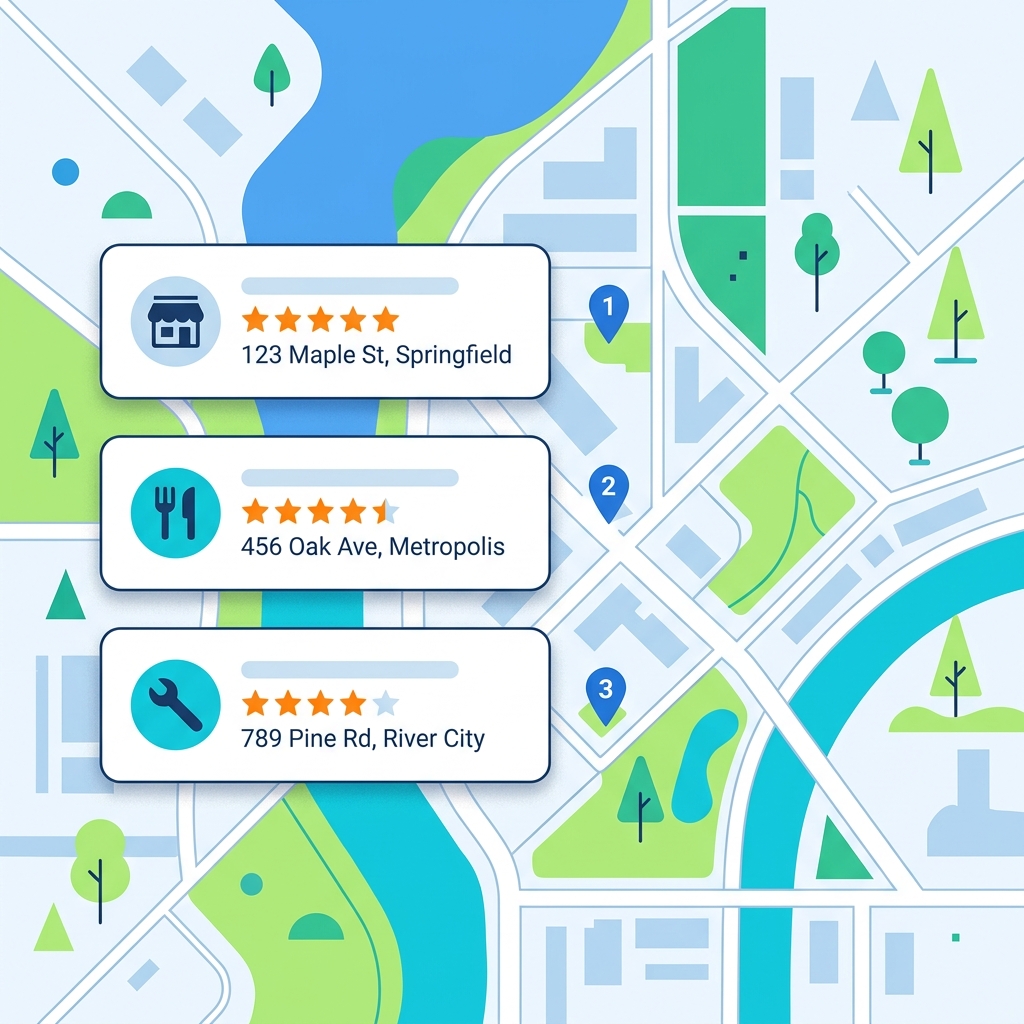
- Verify Local SEO Efforts: Ensure your Google Business Profile is actually ranking in the "Local Pack" (the map results) for the specific zip codes you are targeting.
- Monitor Competitors: See who is dominating the search results in a different market before you expand your business there.
- Check Paid Ads (PPC): Verify that your localized Google Ads are displaying correctly to your target audience without wasting your own ad spend by clicking on them.
The Bottom Line
While VPNs and Chrome Developer Tools are great to have in your digital marketing arsenal, they are often too slow and tedious for everyday use. For quick, accurate local SERP checks, a dedicated search simulator is the most efficient approach.
Further Reading
- Understand how Google constructs results: What is a SERP? A Complete Guide
- Learn about the technology behind location simulation: UULE Parameters Explained
- See the anatomy of a modern results page: The Anatomy of a Google Search Results Page in 2026
Digital marketer specializing in Local SEO and PPC. James has spent years helping businesses and agencies understand what their customers actually see on Google — and built QueryFrom to make that process faster for everyone.