If you own a local business and you haven't set up a Google Business Profile, you are invisible to a significant portion of your potential customers. Google Business Profile (GBP)—formerly known as Google My Business—is the single most important tool for local search visibility.
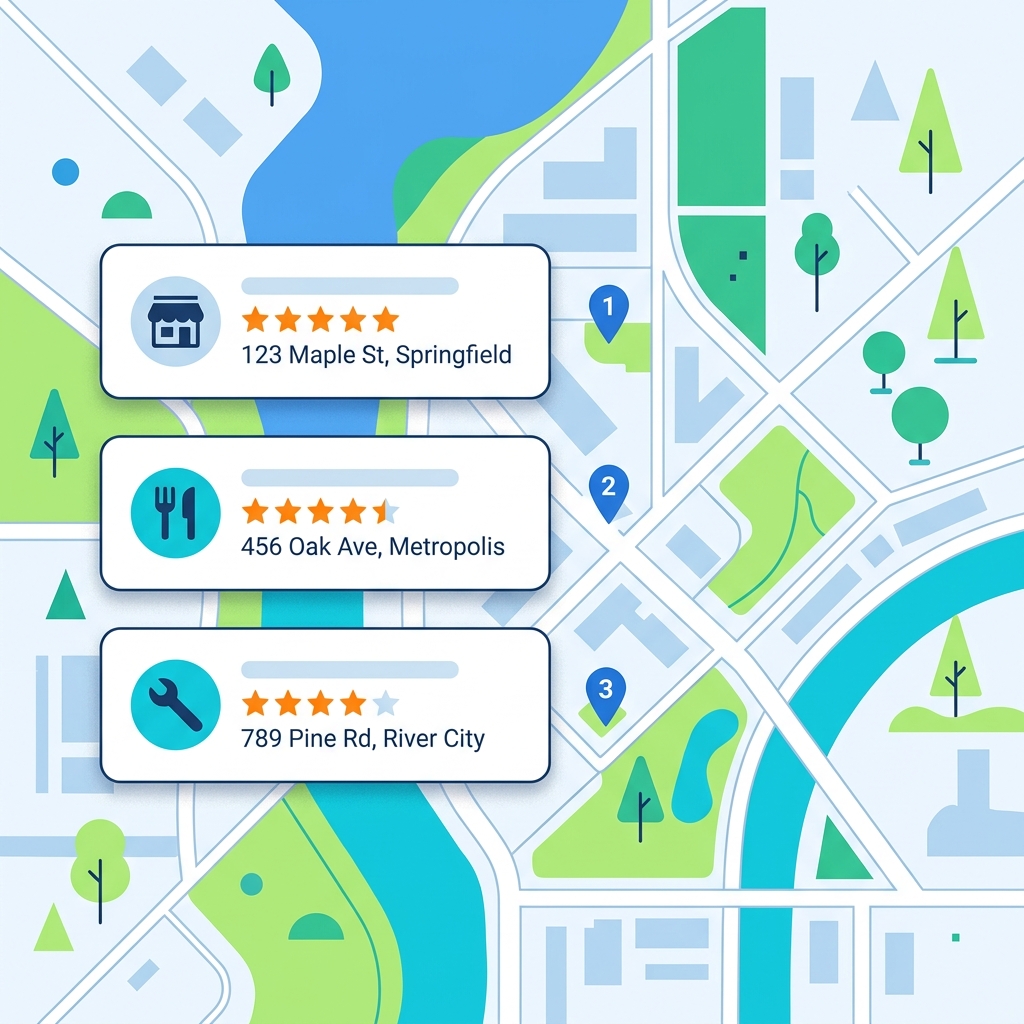
When someone searches for a service in their area, the Google Local Pack (the map with three business listings) is often the first thing they see. Those listings are pulled directly from Google Business Profiles. Without one, your business simply cannot appear there.
What Exactly Is a Google Business Profile?
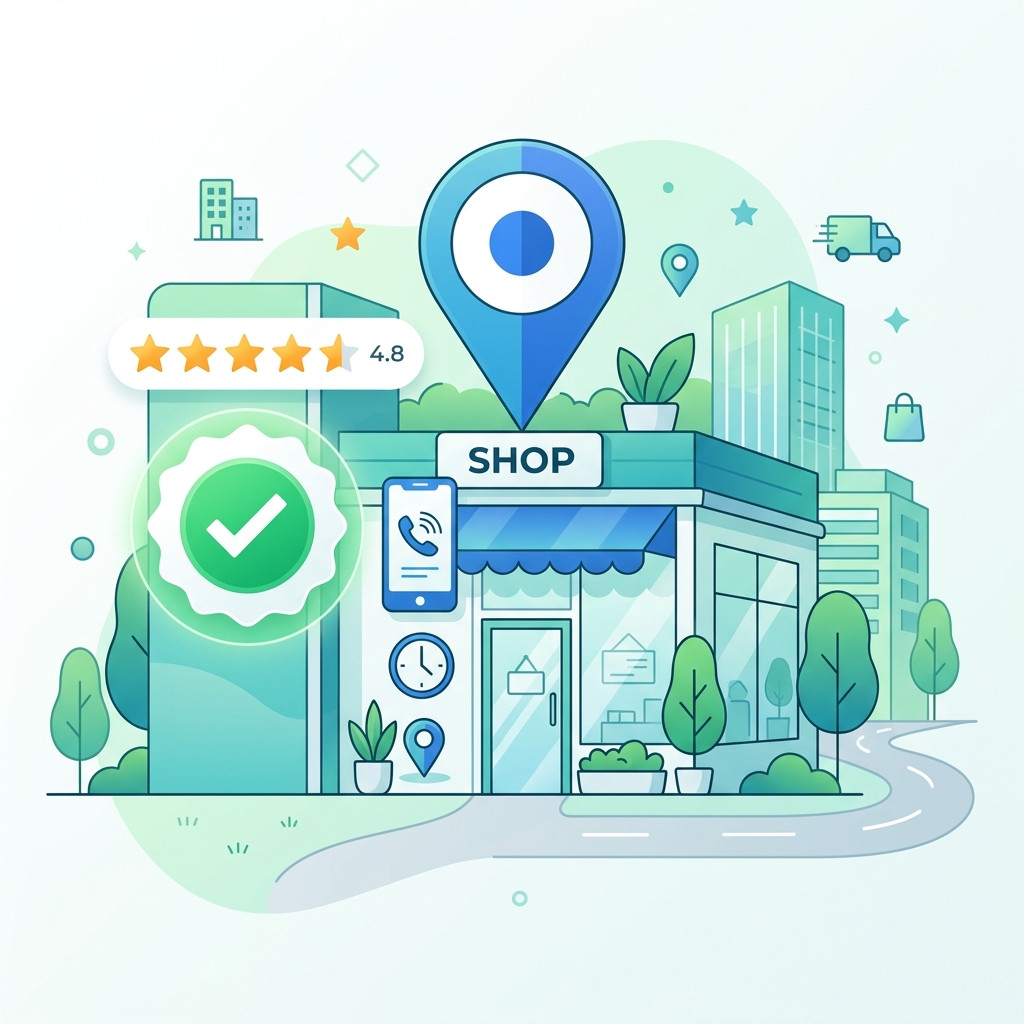
Google Business Profile is a free tool provided by Google that allows business owners to manage how their business appears on Google Search and Google Maps. It's essentially your business's identity card on Google.
Your GBP listing displays:
- Business name
- Address (or service area)
- Phone number
- Website URL
- Hours of operation
- Customer reviews and ratings
- Photos and videos
- Products and services
- Posts and updates
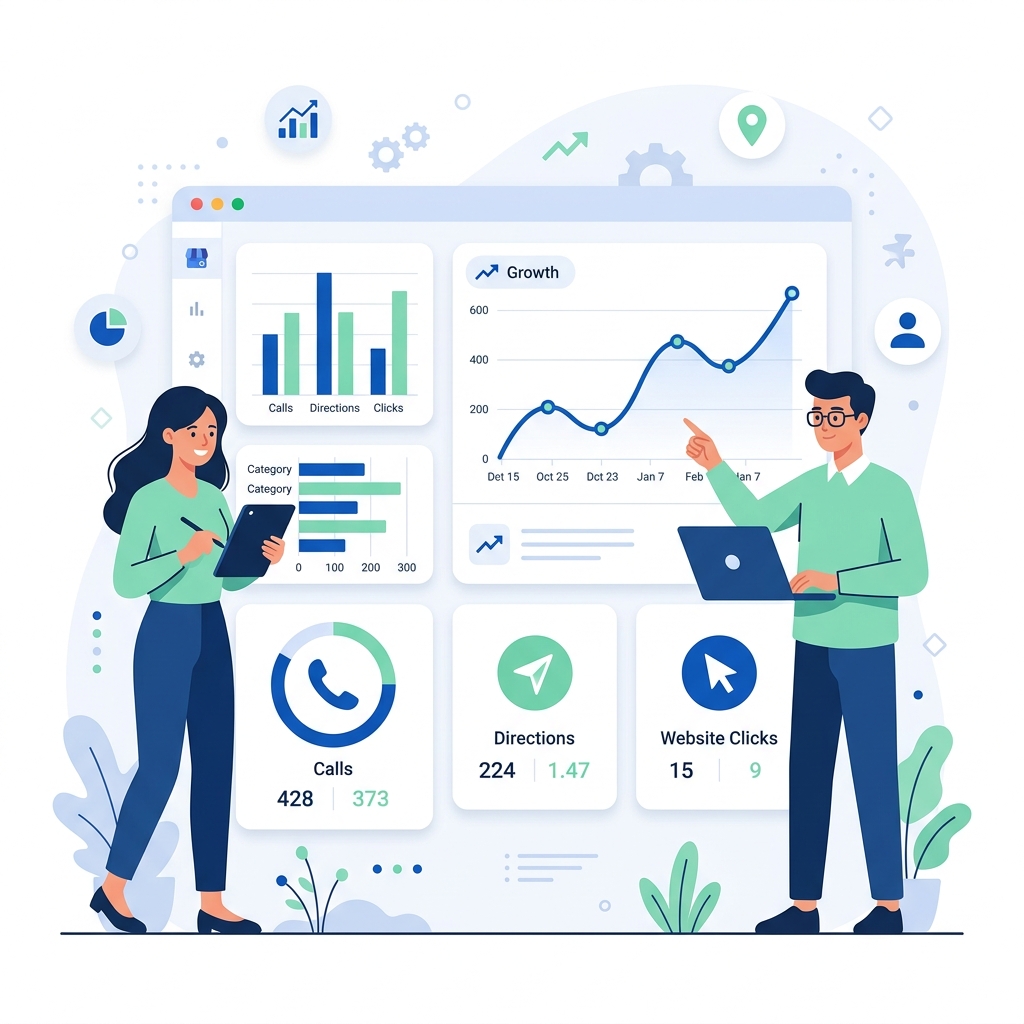
When properly optimized, your GBP listing becomes a mini-website that appears directly in search results, allowing customers to call you, get directions, visit your website, or read reviews without ever leaving Google.
How to Set Up Your Google Business Profile
Step 1: Go to the GBP Portal
Navigate to business.google.com and sign in with your Google account. If you don't have a Google account, you'll need to create one.
Step 2: Enter Your Business Name
Search for your business name. If it already exists in Google's database (from public records, directories, or previous owners), you can claim it. If it doesn't appear, click "Add your business to Google."
Step 3: Choose Your Business Category
Select the primary category that best describes your business. This is one of the most important ranking factors for local search. Be as specific as possible:
- ✅ "Personal Injury Attorney" (specific)
- ❌ "Lawyer" (too broad)
You can add secondary categories later, but your primary category has the most influence on which searches trigger your listing.
Step 4: Add Your Location
If you have a physical storefront or office, enter your address. If you are a service-area business (like a plumber or electrician who travels to customers), you can hide your address and specify your service area instead.
Step 5: Add Contact Information
Enter your phone number and website URL. Use a local phone number (not a toll-free 800 number) when possible, as this reinforces your local presence.
Step 6: Verify Your Business
Google needs to confirm that you are the legitimate owner of this business. Verification methods include:
- Postcard by mail: Google sends a postcard with a verification code to your business address (takes 5-14 days)
- Phone verification: An automated call or text with a code (available for some businesses)
- Email verification: A code sent to the email associated with your domain
- Video verification: Record a video showing your business location and signage
Optimizing Your GBP for Maximum Visibility
Setting up your profile is just the beginning. Optimization is what separates businesses that dominate the Local Pack from those that never appear.
Complete Every Section
Google rewards completeness. Fill out every available field including:
- Business description (750 characters max, use it all)
- Services with descriptions and prices
- Products with photos and descriptions
- Attributes (wheelchair accessible, women-led, veteran-led, etc.)
- Opening date
Upload High-Quality Photos
Businesses with photos receive 42% more requests for directions and 35% more click-throughs to their website (according to Google's own data). Upload:
- Exterior photos (so customers can find your building)
- Interior photos (showing the atmosphere)
- Team photos (building trust)
- Product/service photos
- Your logo as the profile photo
Actively Manage Reviews
Reviews are one of the top three ranking factors for the Local Pack. Your strategy should include:
- Asking every satisfied customer for a review (via email follow-up, text message, or a printed card)
- Responding to every review — both positive and negative
- Never buying fake reviews — Google's detection systems are sophisticated and penalties are severe
Use Google Posts
Google Posts allow you to publish updates, offers, events, and announcements directly to your GBP listing. They appear in your Knowledge Panel and can influence click-through rates. Post at least once a week to signal that your business is active.
Common Mistakes to Avoid
-
Keyword-stuffing your business name: Your GBP name must match your real-world business name. Adding keywords like "Best Plumber Dallas - Joe's Plumbing" violates Google's guidelines and can result in suspension.
-
Using a P.O. Box as your address: Google requires a real, physical address. P.O. Boxes, virtual offices, and UPS Store addresses are not eligible.
-
Setting incorrect hours: If Google detects that your listed hours don't match reality (via user reports or Google Maps data), it will flag your listing.
-
Neglecting the Q&A section: Anyone can ask (and answer) questions on your GBP listing. Monitor this section and answer questions before random strangers answer them incorrectly.
-
Ignoring negative reviews: An unanswered negative review is worse than the negative review itself. Always respond professionally and offer to resolve the issue offline.
Further Reading
- Learn to interpret your performance data: How to Read a Google Business Profile Insights Report
- Understand how GBP feeds into rankings: How Google's Local Search Algorithm Works in 2026
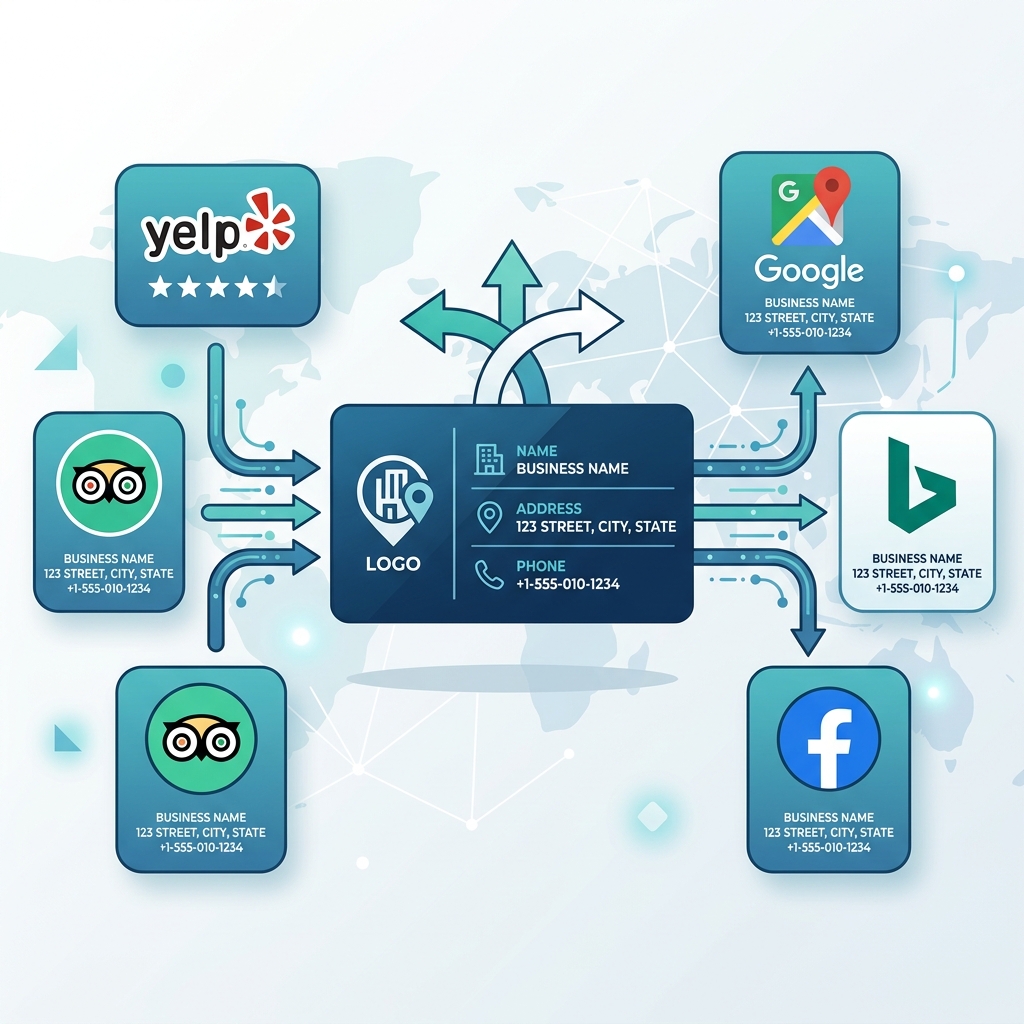
- Ensure your listings are consistent: What are NAP Citations and Why Do They Matter?
Key Takeaways
- Google Business Profile is a free, essential tool for local search visibility
- Your primary category is one of the most influential ranking factors
- Complete every section of your profile — Google rewards completeness
- Reviews are critical for both ranking and conversion
- Regularly post updates and photos to signal an active, engaged business
Digital marketer specializing in Local SEO and PPC. James has spent years helping businesses and agencies understand what their customers actually see on Google — and built QueryFrom to make that process faster for everyone.